Click the "Go To Pick-A-Time Portal" link from the Sundial resource tile
You will automatically be redirected and logged into the pickAtime website and land on Reports/Event Report page. If you are also a Pomfret parent, click the Admin UI button on the left sidebar first and navigate options on the left to go to Reports-->Event Reports
Click the grey button at the top to "block schedule"
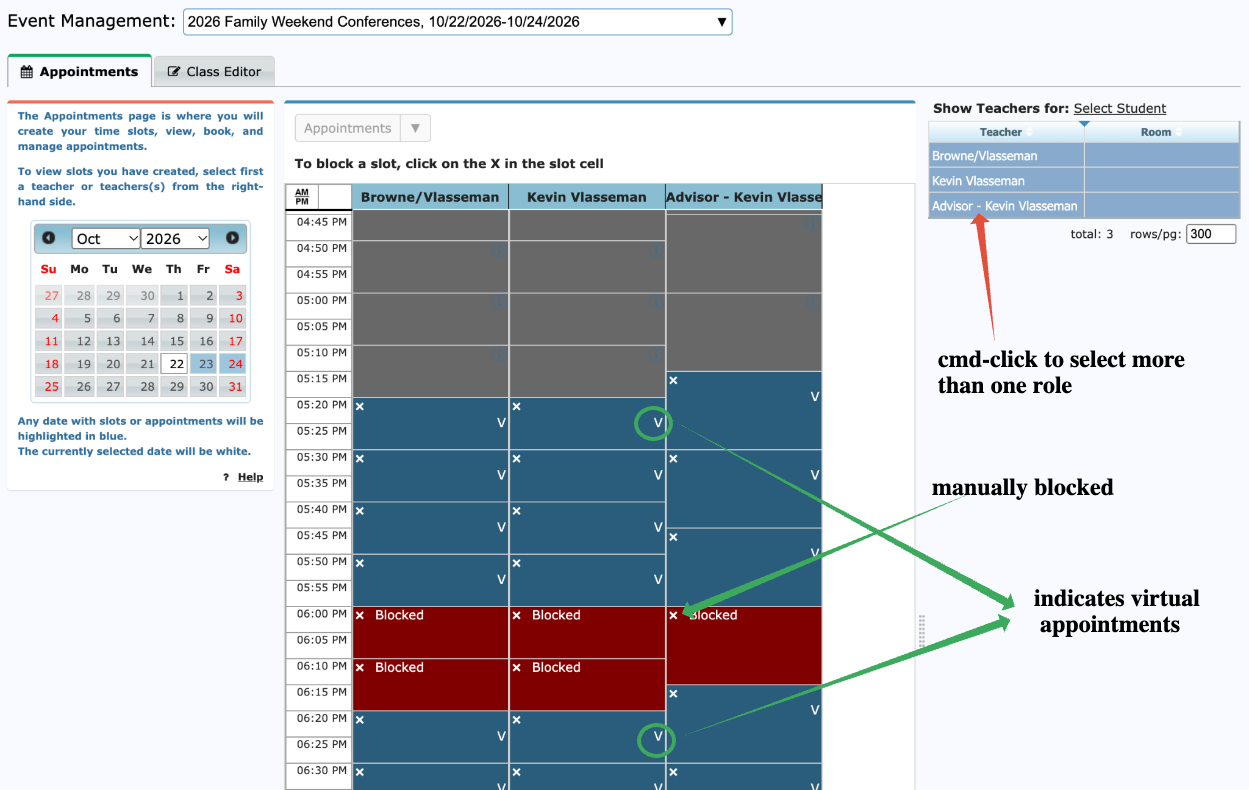
Select/highlight your name (and any other roles you have ie. Advisor, co-teacher, college counselor, etc.) from the “show teachers” on the right hand side.
Review the schedule (navigate to different conference days using the calendar) and block off unavailable time slots by clicking the white x in the appointment slot.
Repeat for any other periods you wish to block.
Please review this example below.
Selected all three “roles” available in the right hand column
Grey are in the grid shows time slots blocked automatically from Google Calendar Sync
Red times were blocked manually in pickAtime
The small white x is used to either block or unblock a time slot.