
Canvas provides a quick way to move content from an existing class and to share content between courses. However you might only want specific content to be copied. Excluding outcomes and rubrics when copying a course prevents old or outdated grading criteria from cluttering your new course, saving you the hassle of deleting duplicate alignment items. You will need to recreate the rubrics with the outcomes for this year.
Here is the step-by-step process to perform the copy in Canvas:
Step 1: Open the New (Target) Course
- In the left-hand Course Navigation menu, scroll down to the bottom and click Settings.
Step 2: Access the Course Import Tool
- In the right-hand sidebar (or at the bottom of the page if your screen is narrow), click Import Course Content.
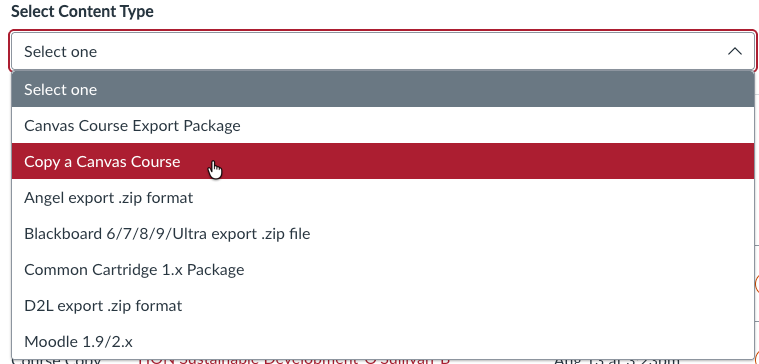
- From the Select Content Type drop-down menu, select Copy a Canvas Course.
Step 3: Select the Previous Course
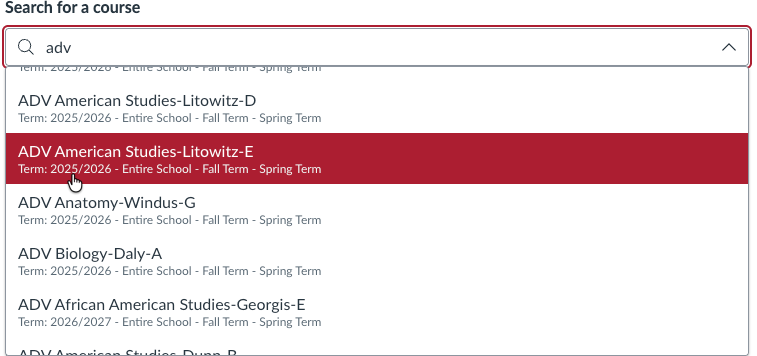
- In the Search for a course drop-down menu, select the previous course you want to copy from.
- (Optional) Check the box for Include completed courses if your old course took place in a prior term and isn't appearing in the list.
- It is helpful to look closely at the term to make sure you are copying the most recent course.
Step 4: Choose Specific Content
Crucial Step: Do NOT choose "All Content," as that will automatically bring over rubrics and outcomes.
- Under the Content heading, select Select specific content.
- (Optional) Check Adjust events and due dates if you want Canvas to automatically shift assignment due dates or remove dates for the new term. It may be easier to simply remove the dates as you will likely need to shift them in the new course.
- You can choose the content after selecting Add to Import Queue
Step 5: Start the Import Process
- Click the Add to Import Queue button at the bottom.
- The page will refresh and display the job under Current Jobs with a yellow status box labeled Select content

Step 6: Exclude Rubrics and Outcomes
- Click the red Select Content button next to the pending import job.
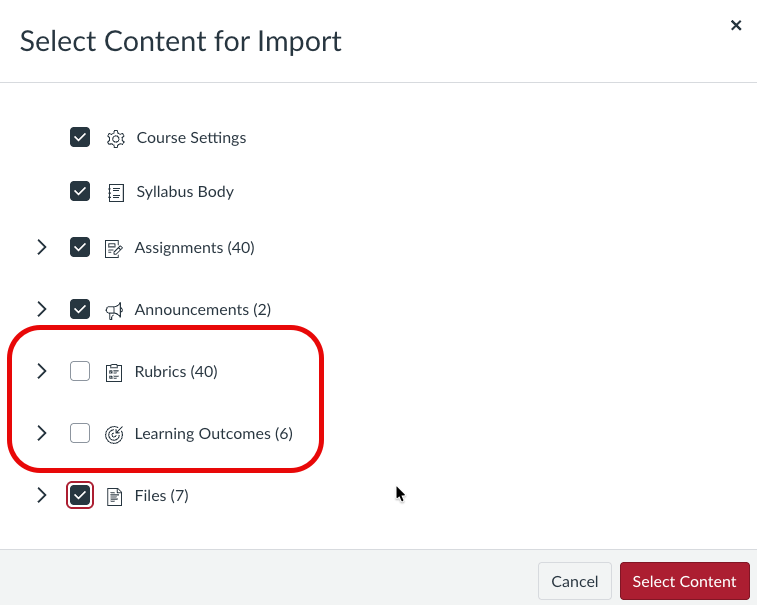
- A pop-up menu will open displaying a list of content categories (Modules, Assignments, Quizzes, Pages, Files, etc.).
- Select the check boxes for the content categories you want to bring over (e.g., Modules, Assignments, Files).
- To exclude Rubrics and Outcomes:
• Do NOT check the box next to Rubrics.
• Do NOT check the box next to Outcomes. - Once you have checked your desired items while leaving Rubrics and Outcomes unselected, click the Select Content button at the bottom right of the pop-up window.
Step 7: Complete the Import
- The status box will change to Queued or Running with a progress bar.
- Once complete, the bar will turn green and display Completed.
- Check your new course's navigation menu (Modules, Assignments, Pages) to confirm your content imported correctly without the old rubrics and outcomes.
Note: depending on how busy the Canvas serves are will dictate how long the import takes. I have found that it's usually not longer than a few minutes during busy times.